ASUS Router Login
ASUS makes some of the best consumer routers on the market — fast hardware, excellent firmware, and features that other brands charge subscriptions for. The downside? Actually getting into the admin panel for the first time can be weirdly confusing because ASUS gives you three different ways to do it, and the IP address changed between generations.
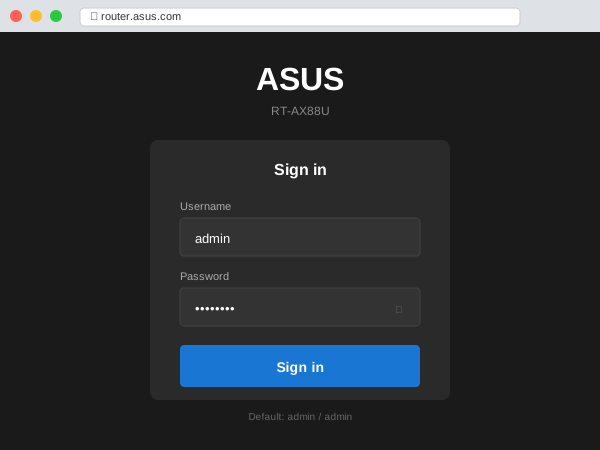
Three Login Addresses, One Router
Here's the deal: router.asus.com is a hostname that your ASUS router intercepts on the local network. It redirects to whichever IP your specific model uses. This is what you should try first because it works regardless of whether you have a new or old model.
Behind the scenes, newer models (basically anything WiFi 6 or later — the RT-AX series, ZenWiFi, ROG Rapture) sit at 192.168.50.1. Older WiFi 5 models (the RT-AC series) use 192.168.1.1. ASUS switched subnets to avoid conflicts with ISP modems, which overwhelmingly use the 192.168.1.x range. Smart move, but it means half the tutorials online are pointing people to the wrong IP.
Default Credentials
Out of the box, ASUS routers use admin for both username and password. But here's the catch that gets people: on first boot, every modern ASUS router runs a setup wizard that forces you to create a new password before you can do anything else. So admin/admin only works if the router has never been set up, or if you've just done a factory reset.
If someone else set up the router — an installer, previous owner, family member — you need whatever password they chose. There's no way to recover it without resetting the unit.
First-Time Setup
Unbox, plug the power in, connect the WAN port to your modem with the included Ethernet cable, and wait about 60-90 seconds. You'll see an open WiFi network appear named something like ASUS_XX or the specific model name.
Connect to that network, open a browser, and go to router.asus.com. The setup wizard will:
- Detect your internet type (usually DHCP — auto-detected from your modem)
- Ask you to name your WiFi network and set a WiFi password
- Ask you to create an admin login password (different from WiFi password)
- Apply settings and reboot — takes about 30 seconds
After that, you're in the ASUSWRT dashboard. Reconnect to your newly named WiFi network with the password you just set.
ASUSWRT: What Makes It Good
ASUS's firmware, called ASUSWRT, is genuinely one of the better router interfaces in consumer networking. It's dark-themed, organized logically, and packs features that competitors charge monthly subscriptions for:
AiProtection — a security layer powered by Trend Micro that blocks malicious sites, scans for vulnerabilities, and alerts you to infected devices on your network. This is included free with every ASUS router. NETGEAR charges $100/year for their equivalent (Armor). TP-Link charges for HomeShield Pro. ASUS just... includes it.
Adaptive QoS — bandwidth prioritization that lets you favor gaming traffic, streaming, or VoIP. You can set it per device or by traffic category. The "Gaming" preset is surprisingly effective at reducing ping spikes when someone else is downloading on the same network.
AiMesh — this is ASUS's mesh networking feature, but with a twist: you can build a mesh using any compatible ASUS routers, even different models. Got an old RT-AC68U sitting in a drawer? Add it as an AiMesh node to extend coverage. No need to buy a matching set.
Built-in VPN server — ASUSWRT can run OpenVPN or WireGuard server directly on the router, letting you tunnel back into your home network from anywhere. You can also configure VPN clients to route specific devices through a VPN service like NordVPN or ExpressVPN — useful for streaming.
USB applications — plug a USB drive into the router for network-attached storage (NAS), a basic media server, or Time Machine backups for Mac. Some models also support USB printer sharing.
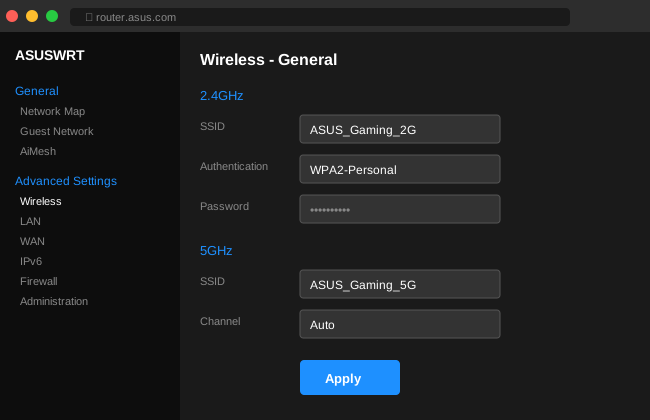
Changing WiFi Name and Password
- Login at
router.asus.com - Click Wireless in the left sidebar
- For SSID, type your desired network name
- For WPA Pre-Shared Key, enter your new password
- Click Apply
If your router is dual-band (2.4 GHz and 5 GHz), you can give them the same name — the router will automatically steer devices to the best band (called Smart Connect). Or name them separately (like "MyWiFi" and "MyWiFi_5G") if you want manual control over which band a device uses.
Popular ASUS Router Models
| Model | WiFi | Admin IP | Best For |
|---|---|---|---|
| RT-AX86U Pro | WiFi 6 | 192.168.50.1 | Gaming + all-around best value |
| RT-AX88U Pro | WiFi 6 | 192.168.50.1 | Large homes, lots of devices |
| ZenWiFi XT9 | WiFi 6 | 192.168.50.1 | Mesh for 5,500+ sq ft homes |
| ZenWiFi Pro ET12 | WiFi 6E | 192.168.50.1 | Premium mesh, 6 GHz band |
| ROG Rapture GT-AX11000 | WiFi 6 | 192.168.50.1 | Tri-band gaming monster |
| ROG Rapture GT-AXE16000 | WiFi 6E | 192.168.50.1 | Top-end quad-band |
| RT-AC68U | WiFi 5 | 192.168.1.1 | Budget reliable classic |
The ASUS Router App
ASUS has a mobile app (iOS and Android) that mirrors most of the web interface. It's actually well-made — not the afterthought that most router manufacturers ship. You can run the initial setup wizard, monitor traffic in real time, manage AiMesh nodes, adjust parental controls per device, and receive security alerts. It also lets you set up the router without a computer, which is handy.
The app connects locally when you're home and can optionally connect remotely via ASUS's cloud relay (called AiCloud). Remote access requires creating a free ASUS account.
Can't Login? Troubleshooting
router.asus.com doesn't load. Your DNS might not be resolving it — happens with some ISP DNS servers or if you're running a custom DNS like Pi-hole. Type the IP directly: try 192.168.50.1 first, then 192.168.1.1. Still nothing? Open Command Prompt and run ipconfig — your Default Gateway is the IP you need.
Password doesn't work. Remember, admin/admin only works on a factory-default router. If someone already set it up, you need their chosen password. No recovery option exists — the only way is a factory reset (hold Reset button for 10+ seconds).
You're on an AiMesh node, not the main router. Only the primary AiMesh router serves the admin panel at the base IP. Nodes get IPs like 192.168.50.2, 192.168.50.3, etc. If you need node-specific settings, find the node's IP in the AiMesh section of the main router's admin panel.
The page loads but shows a different brand. You might be reaching your ISP's modem/gateway instead of your ASUS router. Check that you're connected to the ASUS WiFi network, not the ISP device.