D-Link Router Login
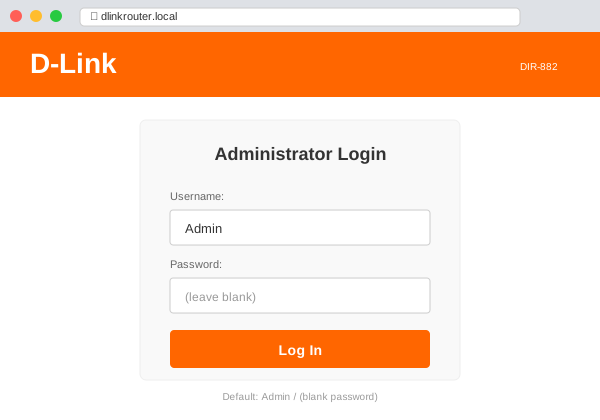
D-Link has a quirk that confuses people: the default password on their older routers isn't "admin" or "password" — it's nothing. Literally a blank field. You type Admin as the username (with a capital A, because it's case-sensitive), leave the password field completely empty, and hit login. If you've been trying every common password and getting rejected, that's probably why.
Newer D-Link models have moved to unique per-device passwords (printed on the label), but there are millions of older units still running worldwide where the blank password applies.
It's 192.168.0.1, Not 192.168.1.1
D-Link uses 192.168.0.1 as their default gateway — a different subnet from the 192.168.1.1 that NETGEAR, ASUS, and Linksys use. This is actually helpful if you're daisy-chaining a D-Link router behind another brand — there's no IP conflict out of the box. But it means that typing 192.168.1.1 (which is what most internet tutorials default to) won't work for a D-Link.
You can also use dlinkrouter.local in your browser, which is a hostname that the router intercepts locally. This avoids needing to remember the IP at all.
Credentials by Era
D-Link's default login has changed significantly over the years:
| Model Generation | Username | Password | Example Models |
|---|---|---|---|
| Legacy (pre-2018) | Admin | (blank) | DIR-615, DIR-825, DIR-868L |
| Transitional (2018-2020) | admin | admin or on label | DIR-867, DIR-882 |
| Current (2020+) | Admin | On device label | DIR-X1560, DIR-X5460, COVR series |
| D-Link Eagle Pro AI | Set during app setup | R15, R32, M15 | |
The newer Eagle Pro AI series doesn't even have a traditional web login initially — you set everything up through the D-Link WiFi app. You can access the web interface afterward at 192.168.0.1, but the app is the primary management method.
Logging In on Older D-Link Routers
Got a DIR-series router from a few years back? Here's exactly what to do:
- Connect to the D-Link WiFi or plug Ethernet into one of the numbered LAN ports (not the INTERNET port)
- Open your browser and go to
http://192.168.0.1 - At the login prompt, type
Adminin the username field — capital A matters - Leave the password field completely empty — don't type spaces, don't type "password", just leave it blank
- Click Log In
If you get in, the first thing you should do is set an actual admin password. A router with no password is an open door for anyone on your network to mess with your settings, change your DNS, or disable your security.
D-Link's Admin Interface
D-Link's web interface has gone through several redesigns. Older models have a blue-and-gray layout with tabs across the top. Newer models use a more modern design with a sidebar navigation and a dashboard showing connected devices and internet status.
Regardless of the visual style, the important settings are in the same places:
WiFi settings: Look under Wireless or WiFi. You'll find SSID (network name), password, security mode (use WPA2 or WPA3), and band selection. Dual-band models show 2.4 GHz and 5 GHz as separate sections.
Internet connection: Under Internet or WAN. Most home connections use DHCP (automatic), which is the default. You'd only change this for PPPoE (common with DSL) or static IP setups.
Port forwarding: Usually under Advanced → Port Forwarding or Virtual Server. D-Link also has a "Gaming" mode in some models that simplifies this with presets for popular games.
Parental controls: Available on newer models under Features → Parental Control. You can block specific sites, set schedules per device, and filter content categories. The Eagle Pro AI models have more granular AI-powered controls through the app.
Updating D-Link Firmware
D-Link has had some high-profile security vulnerabilities over the years, so keeping firmware updated matters more than with some other brands. To check:
- Login at 192.168.0.1
- Go to Management → Firmware (or System → Firmware Update)
- Click "Check for update" if available
- If an update exists, download and apply it — don't power off during the update
Troubleshooting D-Link Login
192.168.0.1 shows a different brand's page. Someone plugged the D-Link router into another router's LAN port instead of using it as the primary gateway. The other router is answering at 192.168.0.1. Solution: connect directly to the D-Link via WiFi or Ethernet, and check your gateway IP with ipconfig — it might have been reassigned a different IP by the upstream router.
"Admin" with blank password doesn't work. Three possibilities: someone already set a password, your model uses a unique label password, or you're not capitalizing the A. Try lowercase admin with no password too. If nothing works, factory reset (pinhole on the back, hold 10 seconds).
dlinkrouter.local doesn't resolve. Some browsers (especially with VPNs or custom DNS) don't handle .local addresses well. Use the IP 192.168.0.1 directly instead.
Page loads but is stuck loading forever. Classic D-Link issue with older firmware. Try a different browser, or clear your browser cache. If the router has been running for months without a reboot, power cycle it — D-Link routers can get sluggish over time, and a reboot clears the cobwebs.