192.168.1.254 — AT&T Gateway Login
If you're an AT&T Fiber or U-verse customer, 192.168.1.254 is your gateway's admin address. AT&T does things differently from most router brands — instead of a username and password, you need a Device Access Code, which is a 10-character alphanumeric string printed directly on your gateway hardware. No app download required, no account creation — just that code and a browser.
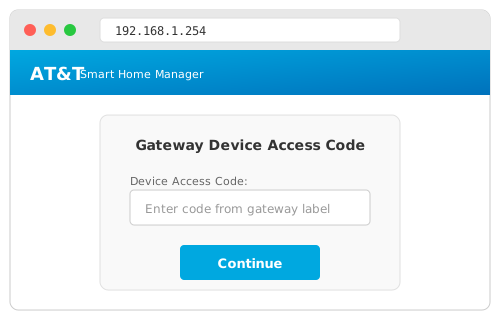
Finding Your Device Access Code
This trips people up more than anything else. The Device Access Code isn't something you set — AT&T generates it at the factory. Look at the physical gateway unit itself:
- On the BGW210-700 and BGW320-500/505 gateways, the code is on a white sticker on the side panel
- Older NVG589 and 5268AC units have it on the bottom
- The code is 10 characters — a mix of uppercase letters and numbers (case-sensitive)
- It's labeled as "Device Access Code" or sometimes "Access Code" — don't confuse it with the Wi-Fi password or the serial number
How to Login Step by Step
- Connect to your AT&T network — either Wi-Fi or Ethernet. The admin page is only accessible from within your home network
- Type
http://192.168.1.254in your browser's address bar. Don't Google it — type it directly into the URL bar - Enter the Device Access Code from the gateway label
- Click "Sign In" — you'll land on the Home Network Status page
Once you're in, AT&T's interface is actually one of the more polished ISP admin panels. The main dashboard shows your broadband connection status, Wi-Fi details, and connected devices at a glance.
What You Can Actually Control
AT&T locks down some settings compared to standalone routers, but here's what you do have access to:
Wi-Fi Settings
Navigate to Home Network → Wi-Fi. You can change your network name (SSID), set a new password, switch between 2.4 GHz and 5 GHz bands, or enable/disable the guest network. On the BGW320, you'll also see a 6 GHz band if your gateway supports Wi-Fi 6E.
Connected Devices
Under Home Network → Status, you'll see every device connected to your network. This is useful for spotting unknown devices or checking if a new smart home gadget has connected properly.
Port Forwarding & IP Passthrough
This is the big one for gamers and self-hosters. Go to Firewall → NAT/Gaming to set up port forwarding for specific services. If you're running your own router behind the AT&T gateway, IP Passthrough (under Firewall → IP Passthrough) lets your personal router get the public IP directly — effectively turning the AT&T gateway into just a modem.
Firewall Rules
AT&T gateways have a basic built-in firewall. You can adjust the security level from maximum (blocks most incoming) to minimum, or create custom rules. Most people should leave this at default unless they know what they're doing.
Diagnostics
Under Diagnostics, you can run a broadband speed test, check DSL sync rates (for U-verse), or view event logs. This is handy when troubleshooting slow speeds before calling AT&T support.
AT&T Gateway Models and Their Differences
| Model | Service | Wi-Fi | Notes |
|---|---|---|---|
| BGW320-500 | AT&T Fiber | Wi-Fi 6 | Current standard fiber gateway. Has ONT built-in for newer installs |
| BGW320-505 | AT&T Fiber | Wi-Fi 6 | Variant of the 500 with minor hardware revisions |
| BGW210-700 | AT&T Fiber | Wi-Fi 5 | Older fiber gateway, still very common. Separate ONT required |
| 5268AC | U-verse/FTTN | Wi-Fi 5 | Common for DSL/FTTN connections. IP is still 192.168.1.254 |
| NVG589 | U-verse | Wi-Fi 4 | Legacy unit. If you still have this, ask AT&T for an upgrade |
Using IP Passthrough (For Your Own Router)
A lot of AT&T customers want to use their own router — maybe a NETGEAR Nighthawk or an ASUS RT-AX86U — instead of the gateway's built-in Wi-Fi. The problem is AT&T requires their gateway for authentication. The solution is IP Passthrough:
- Login to
192.168.1.254 - Go to Firewall → IP Passthrough
- Set Allocation Mode to Passthrough
- Set Passthrough Mode to DHCPS-fixed
- Select your router from the device list (connect it first)
- Save and restart
Your router now gets the public IP directly. You can optionally disable the AT&T Wi-Fi (under Wi-Fi settings) so there's no interference with your own router's network.
Troubleshooting: Can't Access 192.168.1.254
If the login page doesn't load at all, work through these in order:
Make sure you're on the AT&T network. If you're connected to a different router (like your own behind the gateway), you might not be able to reach 192.168.1.254. Try connecting directly to the AT&T Wi-Fi or plug into the gateway's Ethernet port.
Check your computer's IP. Open Command Prompt (Windows) or Terminal (Mac) and type ipconfig or ifconfig. Your default gateway should show 192.168.1.254. If it shows something else like 192.168.1.1, you're connected to your personal router, not the AT&T gateway.
Try a different browser or device. Browser extensions, VPNs, or cached pages can interfere. Try Edge, Firefox, or your phone's browser.
Power cycle the gateway. Unplug the power cord, wait 30 seconds, plug it back in. Wait 3-5 minutes for full boot. The gateway takes a while to restart — the broadband light needs to turn solid green.
If the access code isn't working: it's case-sensitive. A zero vs the letter O, or the number 1 vs lowercase L can be tricky on worn labels. If you genuinely can't read it, the Smart Home Manager app bypasses the code entirely.
AT&T Smart Home Manager App
AT&T's app is honestly better than the web interface for everyday tasks. Available on iOS and Android, it lets you:
- Change Wi-Fi name and password without the Device Access Code
- See all connected devices with real-time usage
- Run speed tests from your phone
- Pause internet access for specific devices (great for kids' bedtime)
- Get notified when new devices join your network
- Set up a guest Wi-Fi network
The app authenticates through your AT&T account, so you don't need to be at home or know the Device Access Code. It's the easier option for most people — save the 192.168.1.254 web interface for advanced stuff like port forwarding and IP Passthrough.