192.168.1.1 Router Login
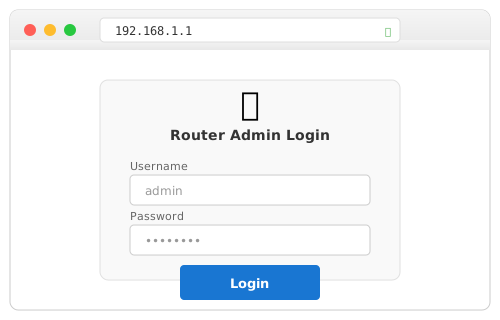
192.168.1.1 is the address most home routers use for their admin panel. NETGEAR, Linksys, ASUS, Cisco, Spectrum, Verizon Fios, Frontier — they all default to this IP (or at least used to). Open it in a browser while connected to your WiFi, enter the login credentials below, and you're into your router's settings.
Login Credentials by Brand
Different routers ship with different default passwords. Find your brand:
| Router Brand | Username | Password | Notes |
|---|---|---|---|
| NETGEAR | admin | password | Also try routerlogin.net |
| Linksys | admin | admin | Newer models: myrouter.local |
| ASUS (older) | admin | admin | WiFi 6+ models use 192.168.50.1 |
| TP-Link | admin | admin | Many TP-Links use 192.168.0.1 instead |
| D-Link | Admin | (blank) | Most D-Links use 192.168.0.1 |
| Cisco | admin | admin | Or cisco/cisco on business models |
| Spectrum | admin | On label | Unique per device |
| Verizon Fios | admin | On label | Printed as "Admin Password" |
| Frontier | admin | admin or on label | Depends on router model |
| Nighthawk | admin | password | Same as NETGEAR |
| NETGEAR Orbi | admin | password | Or use Orbi app |
Change Your WiFi Password
This is what 90% of people visiting 192.168.1.1 want to do. Once logged in, the path varies by brand — but you're always looking for something called "Wireless," "WiFi," or "WLAN" in the admin menu.
On NETGEAR routers: After logging in at 192.168.1.1 with admin/password, click Wireless in the left sidebar. You'll see two sections — one for 2.4 GHz and one for 5 GHz. The "Passphrase" field under each is your WiFi password. Change both to the same new password, click Apply. Your devices will disconnect and need the new password to reconnect.
On Linksys: Login, then go to WiFi Settings. The password field is called "WiFi Password" — Linksys keeps it simple. If you have a Velop mesh system, you'll need the Linksys app instead of the web interface.
On ASUS: Navigate to Wireless → General. Change the "WPA Pre-Shared Key" field. This is your WiFi password despite the confusing name. ASUS's ASUSWRT interface is dark-themed and more complex than most, but wireless settings are straightforward.
On ISP routers (Spectrum, Verizon, Frontier): Look for WiFi or Wireless in the top navigation. ISP interfaces tend to be simpler — the WiFi password is usually on the first page you see after logging in.
192.168.1.1 Not Loading?
If you're staring at a browser error instead of a login page, go through these checks:
Are you typing it in the right place? The address bar — not the Google search bar. On Chrome and Firefox, clicking the search bar at the top and typing "192.168.1.1" often triggers a Google search instead of navigating to the IP. Click in the address bar (where it shows "https://www.google.com" or whatever), clear it, and type http://192.168.1.1 with the http:// prefix.
Is your router actually at 192.168.1.1? Not all are. D-Link and TP-Link usually use 192.168.0.1. Xfinity/Comcast uses 10.0.0.1. AT&T Fiber uses 192.168.1.254. Newer ASUS routers switched to 192.168.50.1. Belkin uses 192.168.2.1. Check the sticker on your router or find your actual gateway IP.
Are you connected to the router? Your device needs to be on the router's network — either via WiFi or Ethernet cable. If you're on mobile data (not WiFi), you can't reach 192.168.1.1 because it's a local address. Same goes if you're connected to a different WiFi network, like a neighbor's or a mobile hotspot.
Is a VPN running? VPN software routes all your traffic through a remote server, which means local addresses like 192.168.1.1 become unreachable. Disconnect the VPN, access your router settings, then reconnect it when you're done.
Try a different browser or device. Browser extensions (especially ad blockers and security tools) can sometimes interfere with accessing local IPs. Try an incognito/private window, or use your phone's browser while connected to WiFi.
Power cycle the router. If the page was loading before but stopped, unplug the router power, wait 30 seconds, plug it back in. Wait 2-3 minutes for a full restart before trying again. Routers can get sluggish after weeks of uptime and occasionally need a reboot.
Common Typos That Go Nowhere
192.168.1.1 is easy to mistype, especially on a phone keyboard. These won't work:
192.168.l.l— lowercase L instead of the number 1 (the most common mistake)192.168.I.I— uppercase ihttp://192.168.1.1.1— extra .1 at the end192.168.11— missing a dotwww.192.168.1.1— it's not a website, no www needed
The correct address is exactly four groups of numbers separated by dots: 192.168.1.1 — all digits, no letters.
What Can You Do in the Router Admin Panel?
Once you're logged into 192.168.1.1, you have access to everything about your home network. The most useful settings, roughly in order of how often people use them:
Wireless / WiFi settings — Change your network name (SSID) and password. You can also switch between security protocols (use WPA3 if available, WPA2 at minimum), adjust channel width, or disable bands you don't use.
Connected devices — See every phone, laptop, smart TV, game console, and IoT device on your network. Most routers show the device name, IP address, and MAC address. Useful for spotting unknown devices or checking if a new gadget actually connected.
Guest network — Set up a separate WiFi network for visitors that keeps them off your main network. Guests get internet access but can't see your computers, printers, or network drives.
Parental controls — Block specific websites, set time schedules (no internet after 10 PM for specific devices), and filter content categories. The quality of parental controls varies wildly between brands — ASUS and NETGEAR tend to have the best built-in options.
Port forwarding — Required for running game servers, security cameras accessible from outside your network, or self-hosted services. You're telling the router "when traffic arrives on port X, send it to device Y." See your specific game or service's documentation for which ports to forward.
Firmware updates — Router manufacturers release updates that fix security holes and sometimes add features. Check for updates periodically — an outdated router firmware is a real security risk. Most modern routers can check and install updates automatically from the admin panel.
DNS settings — By default your router uses your ISP's DNS servers. Switching to Cloudflare (1.1.1.1) or Google (8.8.8.8) can improve browsing speed and privacy. This is usually under "Internet" or "WAN" settings.
What Is 192.168.1.1 Exactly?
It's a private IP address — part of the 192.168.0.0/16 range that's reserved for local networks and can't be accessed from the internet. When router manufacturers needed to pick a default address for their admin panels, most settled on 192.168.1.1 because it's easy to remember and sits at the start of the 192.168.1.x subnet.
Your router acts as a gateway between your local network and the internet. Every device on your WiFi gets a local IP (like 192.168.1.100, 192.168.1.101, etc.), and the router itself takes 192.168.1.1 — the first address in the range. When your laptop wants to reach a website, it sends the request to 192.168.1.1, and the router forwards it out to the internet. That's why this address is also called the "default gateway."
Other common private IP ranges used by routers include 192.168.0.x (used by D-Link and TP-Link), 10.0.0.x (used by some ISPs like Xfinity), and the unusual 192.168.50.x range that newer ASUS routers adopted. They all serve the same purpose — they're just different "rooms" in the same "building."
After You're Done: Security Checklist
While you're in the admin panel, take five minutes to lock things down:
- Change the admin password from the default. Default passwords are published online — anyone on your WiFi can access your settings if you haven't changed it
- Use WPA2 or WPA3 encryption. If your router is still on WEP or WPA, it's essentially an open network
- Disable WPS (WiFi Protected Setup). The push-button pairing feature has known security flaws. Turn it off under wireless settings
- Disable remote management. Unless you specifically need to access your router from outside your home, keep this off. It's under "Administration" or "Advanced" settings
- Update firmware. Check for the latest version — patches for known vulnerabilities get released regularly